By routing through a domestic soft router, NAS, or router, you can remotely access those devices over SOCKS5. This guide uses Synology as the example, but other soft router setups can also work.
1. Requirements
1.1 A Synology NAS with Docker support and the required network access permissions.
1.2 A public IP address. IPv4 is preferred.
1.3 A domain name connected to Synology DDNS. This is optional, but because public IP addresses may change, DDNS allows long-term access without worrying about IP changes.
1.4 A router that supports port forwarding.
2. Configuration Process
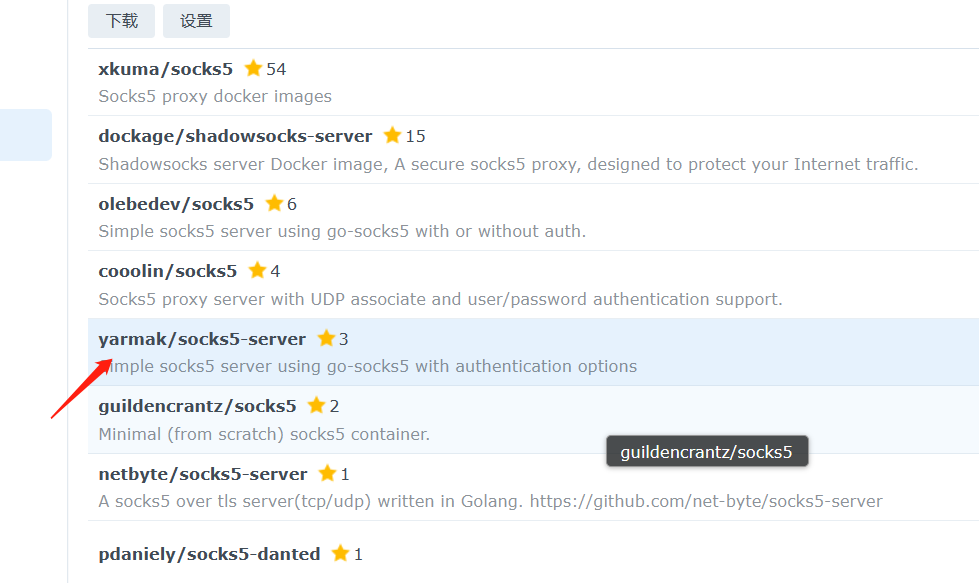
2.1 Open the Synology Docker registry and download yarmak-socks5-server. This is the image I used.
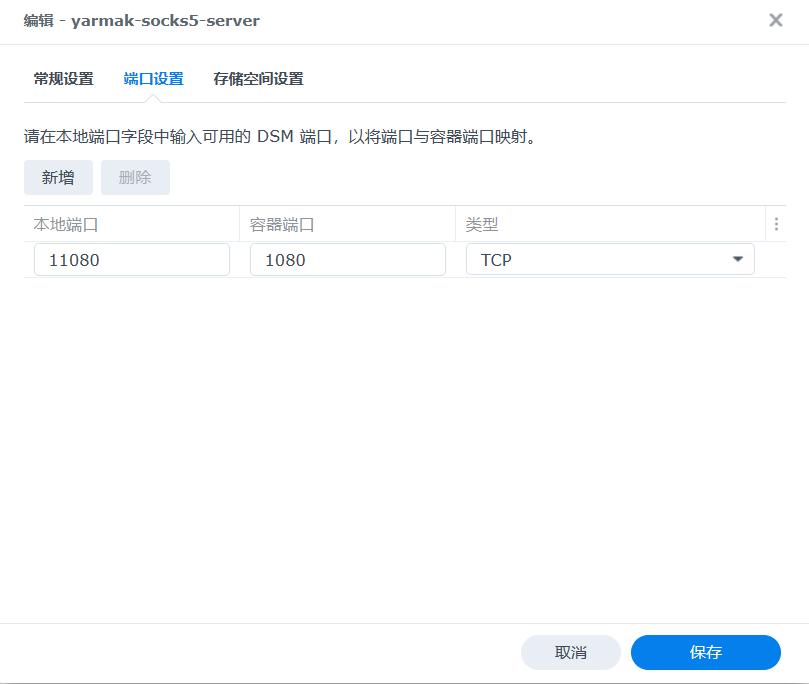
2.2 After the download finishes, start it and configure the ports. The container port can remain at the default value, and the local port can be set as needed.
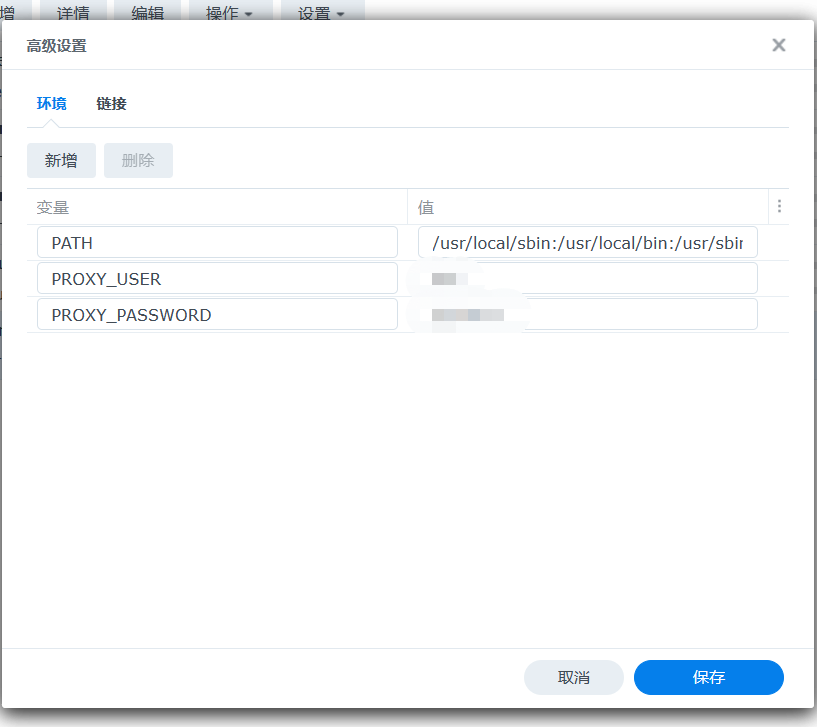
3.3 In Advanced Settings, you can set the username and password in environment variables. If you plan to use it in a browser, do not set authentication, because browsers do not support SOCKS5 account authentication.
Add:
PROXY_USER
PROXY_PASSWORD
After configuration, start the container directly.
3. Router Port Forwarding
I use an ASUS router.
Set both the local communication port and the external port range to the local port you configured for Docker, such as 11080. Save the settings and apply them.
After completing the settings above, you can use the public IP, port, username, and password you configured to connect through the SOCKS5 proxy.
4. Configure Synology Reverse Proxy to Avoid Public IP Changes
Most public IP addresses are not fixed. If the IP changes, you would need to reconfigure the client, which is inconvenient.
Next, bind your own domain through Synology DDNS and configure reverse proxy to solve this problem.
4.1 Configure DDNS on your own. There are many references available.
4.2 Configure Synology reverse proxy as shown below.
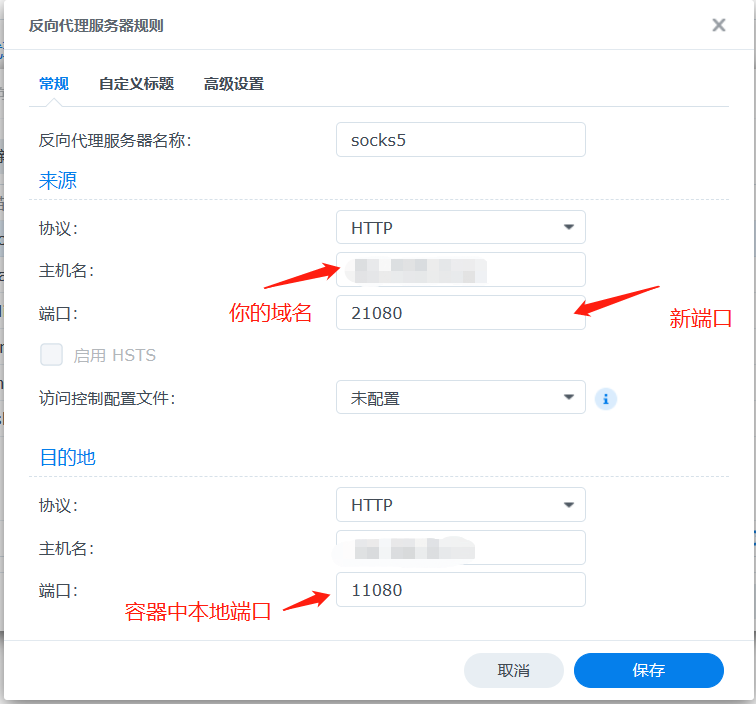
Here I set the external port to 21080.
Client Connection
Use the domain name plus port 11080, along with the account and password you configured earlier, to access your home devices externally through SOCKS5.
This lets you connect to your home network from outside with SOCKS5 and access media content on your home network more easily.